
DeskDash vs Seelen UI: a whole desktop suite, or widgets and a taskbar
DeskDash vs Seelen UI compared: what each changes on Windows, where widgets come from, what a widget can reach, taskbars, multi-monitor and price.
DeskDash lets you design a dashboard and a taskbar on the Windows desktop in your own style, using sandboxed widgets from an open, growing store. Seelen UI is an open source desktop environment that gives Windows a macOS-like look: toolbar, dock, tiling window manager, launcher, virtual desktops and widgets, all curated for that specific look. Both put widgets on the wallpaper and both can replace the taskbar.
On screen you see the same kind of thing in both. The difference is what each one is, where its widgets come from, what a widget may reach on your PC, and how you get and configure them. Neither one replaces Windows; both run on top of it. DeskDash adds two things, widgets and an optional taskbar: you find a widget in the app, install it, grant what it may access, update it and remove it in the same place, and the Windows taskbar comes back with one click. Seelen UI ships a whole suite, opt-in piece by piece from its settings app. The Rainmeter alternatives guide puts both beside the other maintained widget tools.
DeskDash vs Seelen UI at a glance
| Axis | DeskDash | Seelen UI |
|---|---|---|
| What it is | Widgets plus an optional taskbar, added to Windows | Whole desktop suite layered over Windows |
| Licence and price | One-time purchase, every widget and taskbar free | Free, AGPL-3.0; Seelen Sky subscription for extras |
| Where widgets come from | In-app free marketplace, first-party and community | Built-in set plus resources on seelen.io |
| Get, update, remove | Browse, Installed and Updates tabs in the app | Click a resource on the website; app updates by channel |
| What a widget can reach | Isolated frame; capabilities granted per widget | App commands through a typed invoke wrapper, no grant step documented |
| Authoring | Plain HTML, CSS, JavaScript; reviewed before listing | Built web app bundled to YAML, uploaded on the site |
| Taskbar | Marketplace custom taskbars; Windows bar back in one click | SeelenWeg dock, full-width or floating |
| Tiling, virtual desktops, launcher | No | Yes |
| Theming | Wallpaper-derived theme, theme builder, per-widget Style tab | CSS or SCSS themes, stackable |
| Multi-monitor | Own layout per display, per-display widget size | Dock and toolbar per monitor |
| Install | Installer from the website; auto-updates | Store, winget, .msix or .exe; needs WebView2 |
What each one changes about your desktop
DeskDash adds widgets and an optional taskbar to Windows and changes nothing else; Seelen UI adds a whole suite over Windows, from a toolbar and a dock to a tiling window manager and virtual desktops.
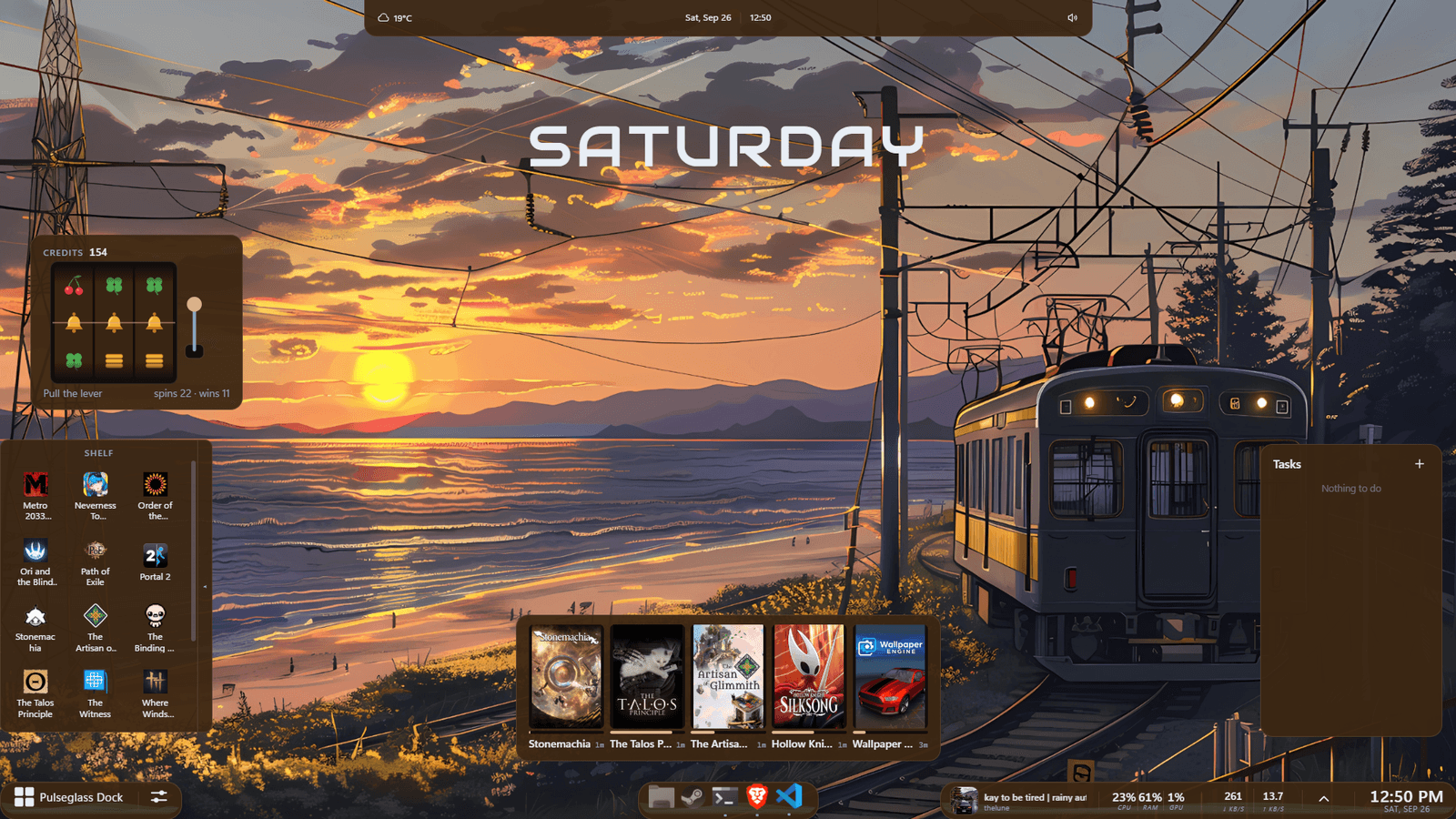
DeskDash widgets sit on the wallpaper behind your windows, and a double-click on an empty spot of the desktop hides them all and brings them back. The widgets act and keep their state: Shelf takes a file, folder or program dropped from Explorer and launches it from a tile, Desktop Drawer turns the desktop or any folder into an app drawer, Todo and Habits are lists you tick off, and Now Playing carries transport controls. The marketplace carries the rest, clock and weather included. Explorer, the desktop and window management stay as Windows made them.
Seelen UI's README groups its parts in three blocks: a custom toolbar, a custom dock, desktop widgets, flyouts and a start menu replacement; a tiling window manager with a custom Alt+Tab, per-app rules, floating mode and gaps; and workspaces with custom virtual desktops, a wallpaper per workspace and named workspaces. The product page adds video wallpapers and interactive HTML wallpapers.
Where do the widgets and taskbars come from, and how do you get them?
DeskDash widgets and taskbars come from a marketplace inside the app, where you install, grant, update and remove them; Seelen UI has a built-in set of widgets and installs community resources you pick on its website.
The DeskDash marketplace has a Widgets section and a Taskbars section, each with Installed, Browse and Updates tabs. You pick a widget, install it, see what it asks to access and grant it before it runs. The Updates tab updates everything in one click, and removal is a click in the same place. No zip to unpack, no folder to copy into.
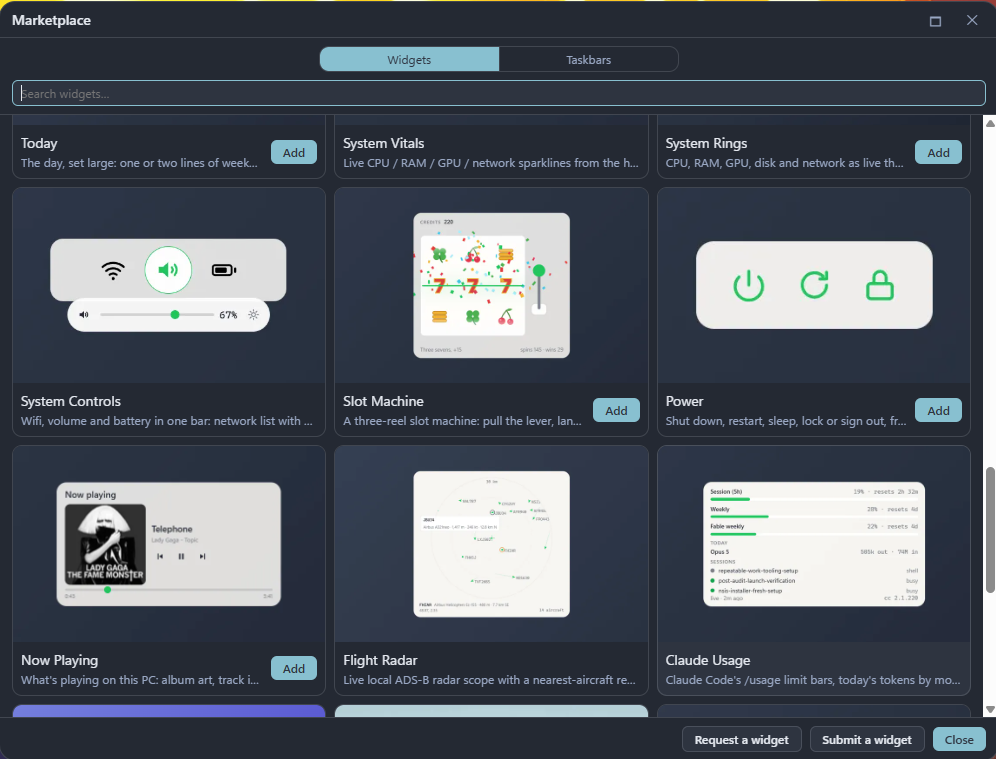
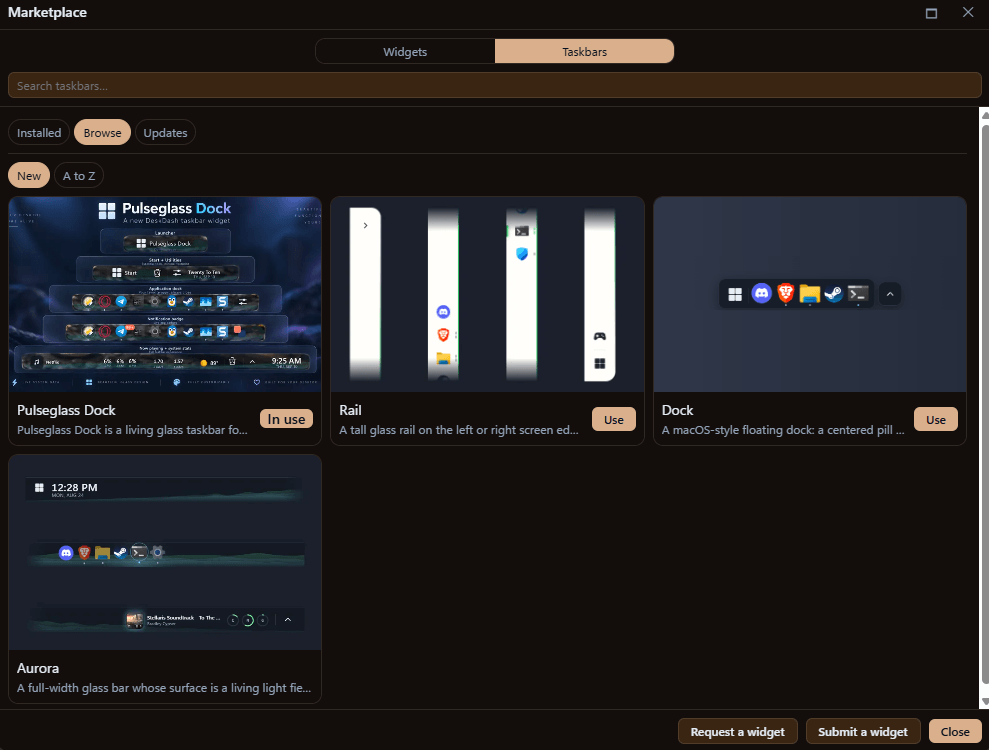
The store is open. Anyone can build a widget or a taskbar and publish it; submissions run through automatic validation and a review by hand before they appear. Other authors already have work live: Pulseglass Dock by kaladindmp is a community taskbar in the taskbar store beside the first-party bars.
Seelen UI's built-in widgets are a clock, media player, system monitor, notifications centre, quick settings panel, flyout alerts, power menu, network manager, Bluetooth manager and clipboard history. Beyond those, the resources site carries community resources in six types (themes, widgets, wallpapers, icon packs, plugins and sound packs), and you click a resource on the website to install it from the app. Some listed widgets, such as Better Clipboard, are marked exclusive for subscribers. Authors publish by bundling a resource into one YAML file with the CLI and uploading it through the website.
What can a widget reach on your PC, and who decides?
A DeskDash widget runs in an isolated frame and gets each capability only after you grant it; a Seelen UI widget calls the app's commands directly, and its docs describe no grant step.
Each DeskDash widget runs in its own frame with no direct reach into files, the network or other widgets. Every system capability goes through the DeskDash SDK and is granted per widget: you see what a widget asks for before it runs and decide. A misbehaving widget only affects itself. API keys live in Windows Credential Manager, never in the widget. Taskbars ask the same way. The security docs walk through the sandbox layer by layer, and the permission reference lists every permission a widget can request. In the site's own words, security will always be a main concern, and review is a standard the founder keeps working at.
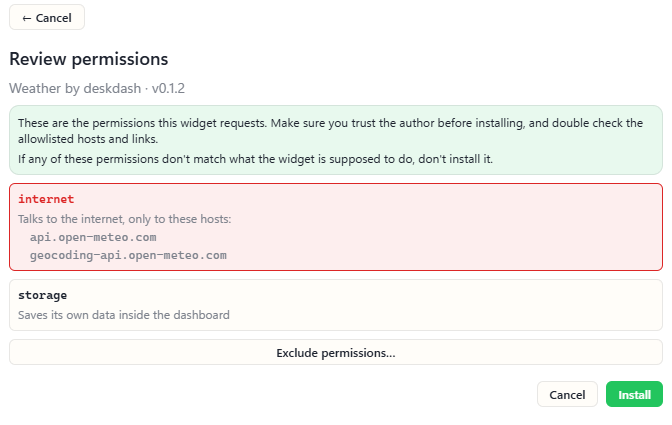
Drop to launch shows the model in practice: the app resolves the dropped file, folder or program itself, and no file path ever reaches the widget.
A Seelen UI widget is a small web app in HTML, CSS and JavaScript that runs inside a Seelen UI window. Its JavaScript API gives it lifecycle control, backend calls through invoke(SeelenCommand.*) and event subscription; the docs describe invoke as a thin, strongly typed wrapper around Tauri's own invoke, and point at the source files for the full command set. Neither the widget API page nor the widget guidelines describe a permission model, a user grant or a restriction on files, network or processes for widgets; as documented, a widget calls app commands directly.
Toolbar plugins are the one documented sandboxed case. Their scripts run inside a JavaScript sandbox with three whitelisted operations: invoke against an allow-list of commands, open(path) and trigger(widgetId).
At package level, the Microsoft Store listing for Seelen UI declares runFullTrust among its capabilities. Microsoft's reference lists runFullTrust as a restricted capability that lets a packaged app run at the full trust permission level of a classic desktop program.
DeskDash vs Rainmeter puts the same question to Rainmeter.
How you configure and theme each one
DeskDash is set up in an edit mode on the desktop, with per-widget settings and a theme that follows your wallpaper; Seelen UI is set up in its own settings app and themed with CSS or SCSS files.
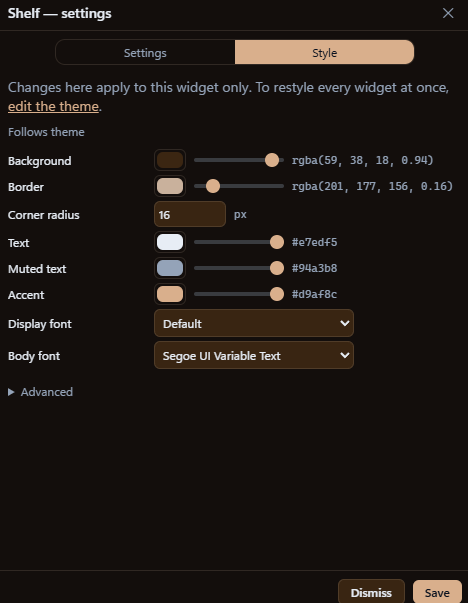
In DeskDash's edit mode you drag, resize, stack and overlap widgets on a grid, with per-widget settings and a live preview. The theme derives itself from your wallpaper, and a theme builder and a shared design-token system make every widget follow the same look. The Style tab on any widget changes that one widget's background, corners, text colors or fonts while the rest keep following the theme. Layout presets save and switch whole arrangements.
Seelen UI toggles its components on and off in its settings app. A theme is a folder with a metadata.yml at its root plus CSS or SCSS. Each entry in the styles map is injected only into that widget's webview, and a sharedStyles block goes into every widget. Several themes can be applied at once, later ones overriding earlier ones. The Seelen docs are written for resource authors, with no user-facing settings reference in the index, and help runs through Discord first.
On the authoring side, a DeskDash widget is plain HTML, CSS and JavaScript with no build step. Developer mode ships a scaffolder, typed SDK autocomplete and a tray-menu reload, and the docs start with what a widget is. A Seelen UI widget is a built web project whose output files are referenced from metadata.yml, with no build-free path documented.
Taskbar and window management
Both replace the Windows taskbar: DeskDash with a taskbar you pick from its marketplace, Seelen UI with its own dock, SeelenWeg. Seelen UI also manages windows, with a tiling window manager, a custom Alt+Tab and virtual desktops, which DeskDash leaves to Windows.
A DeskDash taskbar takes the place of the Windows taskbar with your pinned apps, open windows, start menu and notification area in its own style. Dock, for example, is a floating macOS-style dock with a magnification wave and live window previews, and Pulseglass Dock is a community entry; the taskbar marketplace has the rest. Right-click a bar for auto-hide, an overlay mode, a Size slider from 50% to 200% and the display that carries it. One taskbar runs at a time, and the Windows taskbar comes back with one click on the "In use" chip. A taskbar is a widget like any other, with the same sandbox and grants, covered in the taskbar guide.
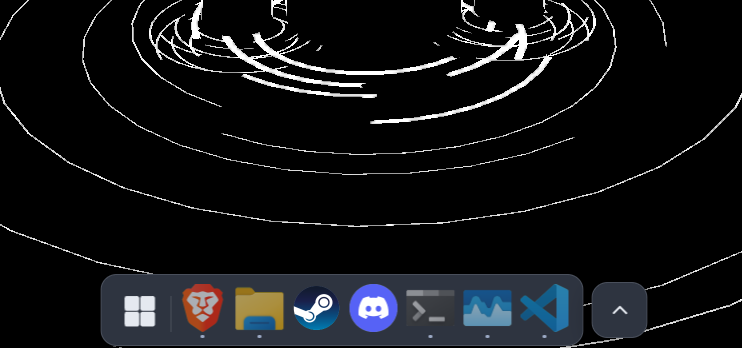
SeelenWeg replaces the Windows taskbar as a full-width bar or as a macOS-style floating dock, sits on any edge with auto-hide and window previews, and supports icon size, zoom on hover and drag-and-drop reordering. The Fancy Toolbar is a scriptable status bar with items for CPU, RAM, network, battery, calendar and quick settings. Version 2.8.3 added import of native taskbar pins, and 2.8.0 introduced a plugin system for the dock.
Beyond the taskbar, Seelen UI has a tiling window manager with four layout engines, a custom Alt+Tab, a start menu replacement with app, file and web search, and custom virtual desktops.
Multi-monitor
Both handle several displays: DeskDash keeps a separate layout for each display, and Seelen UI runs a separately configured dock and toolbar on each monitor.
A DeskDash layout comes back when its display reconnects, and a display with no widgets renders nothing. Settings can shrink the widgets on one screen to 67%, 50% or 33% for 4K and ultrawide displays, and you choose which display carries the taskbar.
Seelen UI chooses the dock position per monitor, with three visibility modes, and a widget can declare its instances as single, multiple or per-monitor.
Setup time and the learning curve
DeskDash installs from the website, and its first run leads you to the store; Seelen UI installs from the Microsoft Store, winget or GitHub Releases and needs the WebView2 runtime and Microsoft Edge.
DeskDash's first run shows a setup guide that offers launch at login and hiding the desktop icons. After that it is the store: install, grant, done.
On Seelen UI, XDA's hands-on by João Carrasqueira praises the rearrangeable toolbar and the movable dock and criticises poor user education; on discoverability the writer says, "It's all kind of haphazardly thrown in there". One AlternativeTo reviewer, kazu, wrote that "there isn't much public information that doesn't require me to join a Discord server".
Upkeep, updates and stability
DeskDash updates itself and the widgets and taskbars you installed, with the release notes shown in the app; Seelen UI shipped about one stable release a week from May to September 2026.
DeskDash shows the release notes in the app after each update, and the changelog is on the site. Store items update in one click from the Updates tab or on their own. Hidden widgets fully unload, an empty display costs nothing, and a low performance mode exists for weaker machines.
Seelen UI's current release is v2.8.6, published 18 September 2026. Across the nineteen weeks from 4 May to 18 September 2026 it put out about one stable release a week, with features in them: transitions for toolbar and dock items, an HDR toggle, night light and the taskbar pin import.
Seelen also publishes a known-issues page, last revised 15 July 2026, which lists a launch failure when both the Store and .exe builds are installed and conflicts with window-style modifiers. Taskbar modification apps such as Start11 and StartAllBack may cause problems. On the tracker, issue #1674, Win + D hiding the dock and desktop widgets on Windows 11 24H2, has been open since 1 July 2026. On performance, Seelen's FAQ describes the app as lightweight, with usage that varies by configuration, and suggests disabling features for gaming; XDA says it takes a bit of a toll.
Price and licence
DeskDash is a one-time purchase with every widget and taskbar included; Seelen UI is free and open source, with a paid Seelen Sky subscription for extras.
DeskDash has no subscription, no ads and no in-app purchases. The purchase buys the app, and every widget and taskbar in the marketplace, community ones included, is free. The current amount is on the homepage. It runs on Windows 10 and Windows 11, 64 bit.
Seelen UI is free under AGPL-3.0, installable at no cost from the Store, winget or GitHub. Seelen Sky sells monthly and annual plans. Each plan lists cloud save and sync across devices, exclusive widgets including Better Clipboard, exclusive themes updated every month and priority support. The subscription gates real catalogue items, since Better Clipboard and Quick Notes are subscriber-only.
Which one fits you?
Pick DeskDash for widgets that act and a taskbar from one store, with each widget's access granted up front; pick Seelen UI for a tiling window manager, virtual desktops and an AGPL licence.
- You want widgets that act and a taskbar, and nothing else changed. An app drawer, a shelf you drop files on, tasks, habits, music controls and a taskbar of your choice, all from one store under per-widget grants: that is DeskDash.
- You want to know before install what a widget may reach. DeskDash shows the grant before the widget runs. For Seelen UI, the widget API docs describe direct command calls and no grant step.
- You want to build your own widget or publish one for others. DeskDash widgets are plain HTML, CSS and JavaScript with no build step, and the store takes submissions from anyone. Seelen UI authoring is a built web project bundled to YAML.
- You want a tiling window manager, virtual desktops, a custom Alt+Tab or a start menu with file and web search. Seelen UI ships those and DeskDash does not.
- You want an open source app under AGPL. Seelen UI is AGPL-3.0 and installs from the Store, winget or GitHub.
Frequently asked
- Does DeskDash have a tiling window manager?
- No. DeskDash adds widgets and an optional taskbar and leaves window management to Windows. Seelen UI has a tiling window manager with four layout engines.
- Does DeskDash need cloud sync like Seelen Sky?
- No. DeskDash has no subscription; layouts are saved per display and as presets you switch between, and everything is included in the one purchase. Seelen Sky sells cloud save and sync across devices.
- Can you run DeskDash and Seelen UI at the same time?
- Both take the place of the Windows taskbar, so only one of them can hold it. DeskDash runs one taskbar at a time and hands the Windows taskbar back with one click. Seelen's known-issues page lists conflicts with taskbar modification apps such as Start11 and StartAllBack.
- Does either one replace the Start menu?
- A DeskDash taskbar carries a start menu in its own style, and the Windows Start menu returns when you switch the Windows taskbar back. Seelen UI includes a start menu replacement with app, file and web search.
- Is Seelen UI free?
- Yes, the app is free and open source under AGPL-3.0. A Seelen Sky subscription adds cloud save and sync across devices, exclusive widgets and exclusive themes.
Keep reading
DeskDash vs Rainmeter: what each one can reach on your PC
DeskDash vs Rainmeter, side by side: where widgets come from, what each one can run on your PC, sensors, multi-monitor, taskbar and price.
Rainmeter alternatives in 2026: which ones are still maintained, and what each widget can reach on your PC
Rainmeter alternatives audited for August 2026: last release, licence, real price, and what a widget can reach on your PC once installed.
Desktop gadgets for Windows 11: what replaced the sidebar
Windows 11 has no desktop gadgets. Why Microsoft removed them, why the Widgets board is not the same thing, and the apps that put gadgets on the desktop.